New User Guide #
Welcome to your new retail terminal! To help you quickly get familiarized and use it effectively, we have prepared this New User Guide for you. Please follow the steps below:
1. Unboxing Inspection and Device Installation #
Device Introduction #
Device Installation #
2. Setting Up Accounts and Logging In #
Function Description #
- Store Account: This account is used in the POS system to identify and manage operations for a specific store. It has various permissions and functions required for managing daily store operations, including but not limited to sales records, inventory management, and employee management.
- Employee Account: Employee accounts provide individual login credentials for each employee within the store. These accounts are typically configured with different permission levels, granting access to different system functions based on the employee’s responsibilities and needs.
Register Store Account #
Set Up Employee Accounts and Permissions #
Login #
After powering on, open the POS system to display the login screen. Enter the company name, account, and password to log in.
3. Familiarizing with the Interface #
Data Dashboard #
Displays the store’s operational status, including:
- Today’s Sales: Total sales amount, quantity sold, and number of orders for the current day.
- 30-Day Sales: Total sales amount and quantity sold within the last 30 days.
- Inventory Preview: Shows inventory data for products sold. Inventory alerts display products with low stock levels that urgently need replenishment.
- 30-Day Inventory Records: Records inventory changes over the past 30 days.
Retail Orders #
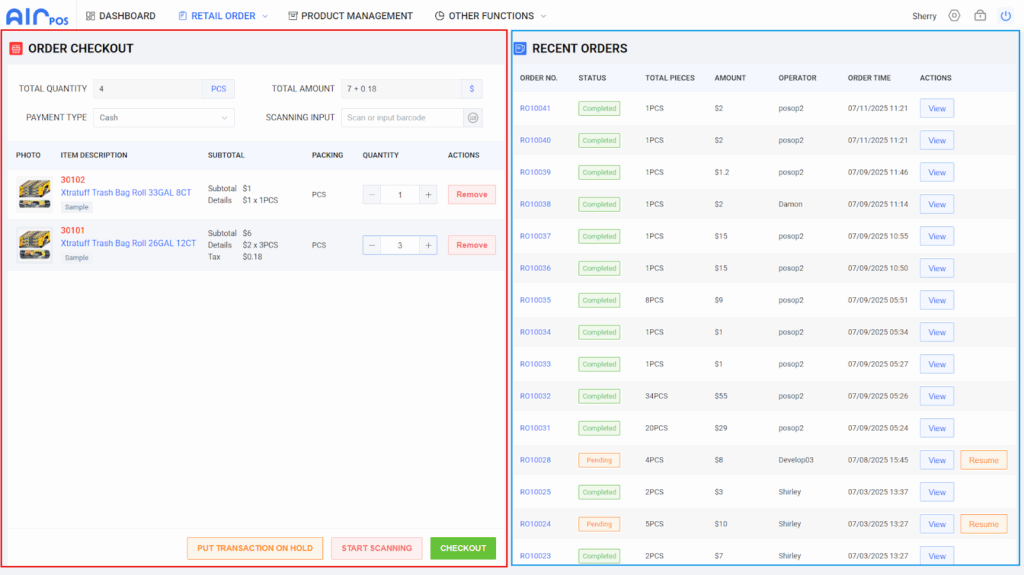
- Red Area: Products scanned and awaiting checkout.
- Blue Area: Recently completed orders. Click ‘View’ to see order details such as products, amount, time, quantity, etc.
Product Management #
Displays all products in stock. View detailed product information and modify product prices.
4. Adding Products #
Manually Adding Products #
Importing Purchased Products (*) #
5. Setting Up Electronic Shelf Labels (*) #
6. Checkout #
Checkout Operations #
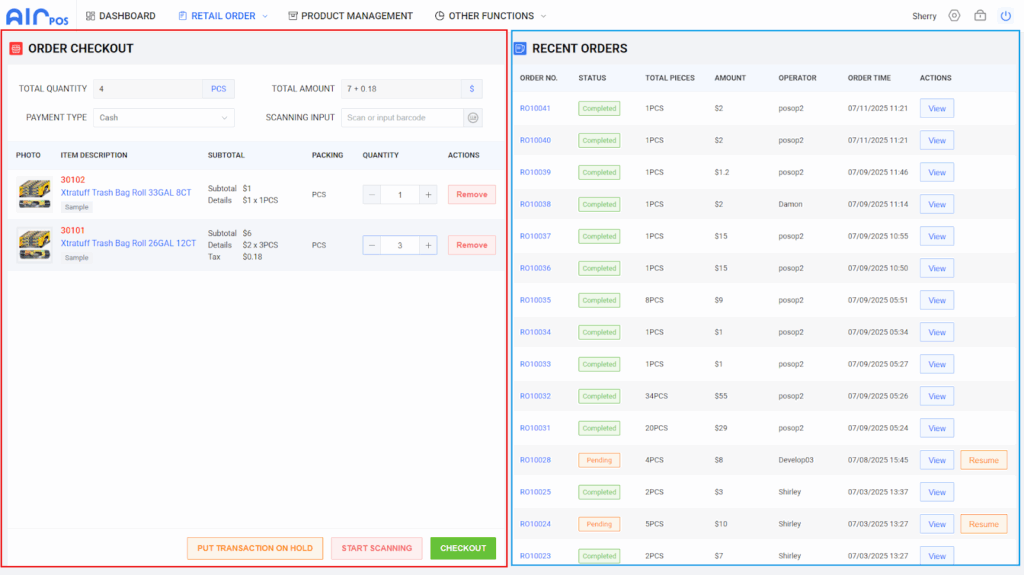
- Scan products; scanned items will appear in the red checkout list area.
- Manually increase the product quantity or click ‘Remove’ to delete the item.
- After all items are added to the cart, remember to ask for the payment method, then click ‘Checkout’.
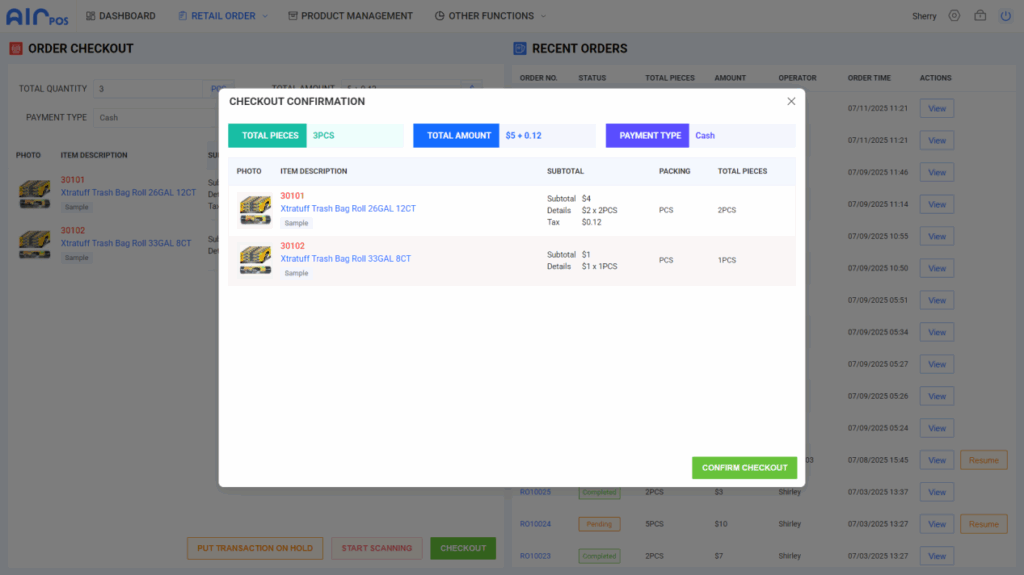
- Displays the total checkout amount and the quantity of items.
- If change needs to be given, click ‘Open Cash Drawer’ to give change to the customer.
- Click ‘Confirm Checkout’ to complete the transaction. A receipt will be printed automatically.
Suspend Order #
Function Description:
When a customer is selecting products but is not ready to checkout, the cashier can use the ‘Put Transaction On Hold’ function to temporarily save the order. This frees up the POS system to handle other customer checkout needs, improving checkout efficiency.
Operation Description:
Retrieve Order #
Function Description:
When a customer is ready to complete their purchase, the cashier can quickly retrieve a previously suspended order using the ‘Retrieve Order’ function to continue the checkout process. This ensures process continuity and efficiency, avoiding the hassle of re-entering products.
Operation Description:
Refund #
Function Description:
Allows cashiers to process customer requests to return goods. By entering the order number or scanning the product barcode, the system can quickly locate the specific purchase record and automatically calculate the amount to be refunded to the customer.
Operation Description:
7. Shift Handover #
Function Description: #
This function allows employees to take over the POS system at the start of their shift and hand it over to the next shift’s employee at the end of their shift. The process includes counting cash in the register, recording sales and refunds, and reporting any unusual transactions.
Importance: This function is crucial for ensuring clear delineation of financial responsibility and enhancing operational transparency in the store. It also helps managers track sales performance per shift.
Shift Handover Operation: #
View Shift Handover Records: #
8. Locking and Unlocking #
Function Description #
The lock function is a key security measure in the POS system. It can be activated manually or automatically lock due to inactivity, multiple consecutive incorrect login attempts, or when preset security triggers are met. This protects your funds.
Operation Description #
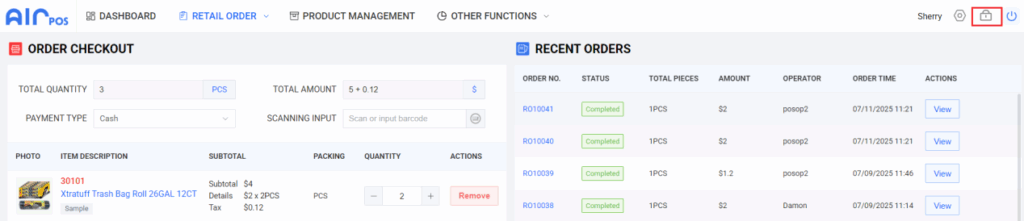
Lock: Click the lock button, or the system will lock automatically after a period of inactivity. The lock button is always located in the top right corner of the screen.
Unlock: After locking, log in again to unlock.
Operations Management #
1. Order Management #
Function Description #
This function allows viewing completed checkout orders and orders that have been refunded. Query results can be filtered by various criteria such as date, customer name, or order status to quickly find the required information.
Operation Description #
2. Product Management #
Function Description #
Provides a detailed list showing all sellable products and their related information. This includes basic product information like name, category, and barcode, as well as detailed data such as selling price, current stock levels, and supplier information.
View Details #
Allows users to delve into the detailed information of a single product. This includes, but is not limited to, price, stock quantity, product description, specifications, images, and sales history.
Modify Price #
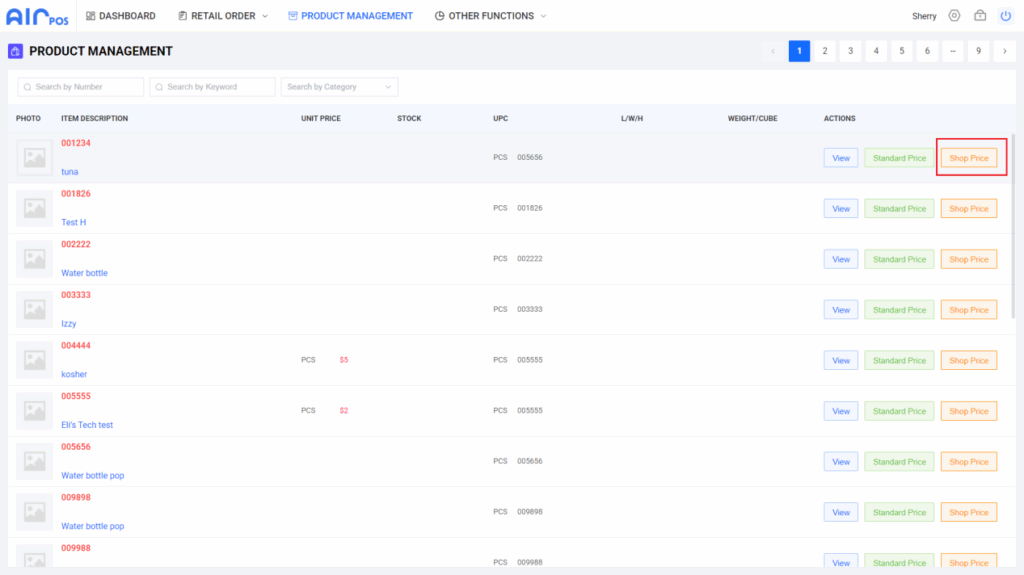
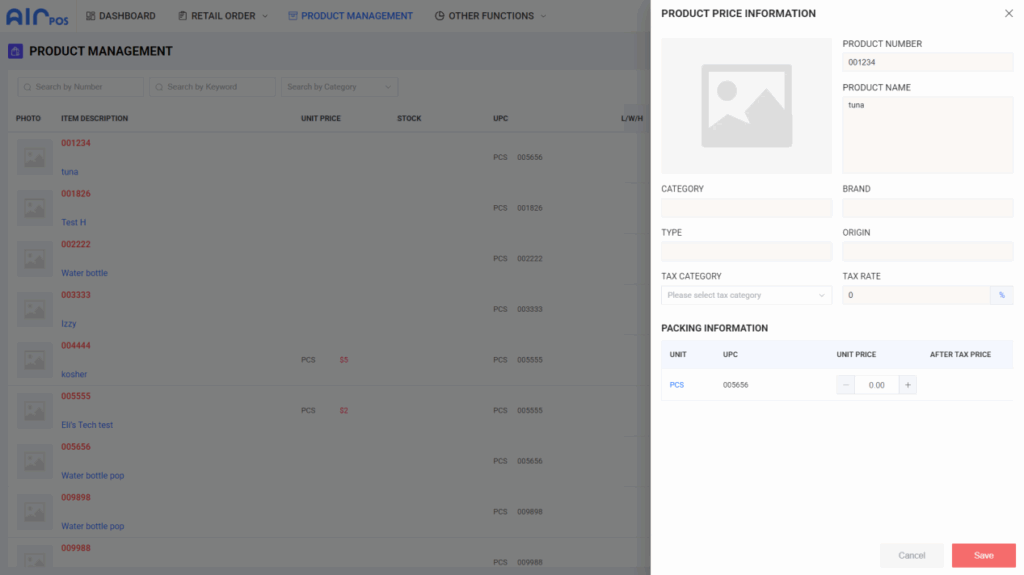
Function Description: Allows modification of a product’s price at any time, facilitating activities like promotions.
Operation Description: In the product list function, click the product’s ‘Price Editing’ option. Enter the new price in the ‘Unit Price’ field and click ‘Save’.
3. Inventory Management #
Function Description #
Allows retailers to view the current stock level of each product in real-time.
Inventory Records #
Provides a detailed history of all activities for each product, including stock intake, sales, returns, and adjustments.
Inventory Alerts #
An automated function that immediately notifies managers or responsible purchasing staff when the stock level of any product drops below a preset minimum level. This enables timely action to reorder products and avoid stockouts.